
Administrators have access to the menu Tools > Administrative Tools. To create an administrator, one administrator must already exist. The administrator SUPER (blank password) is created by default.
Creating and Administrator:
1. Log in as administrator.
2. Select Access Management from the Administration tab.
3. Select the Administrators tab in the Access Management window:
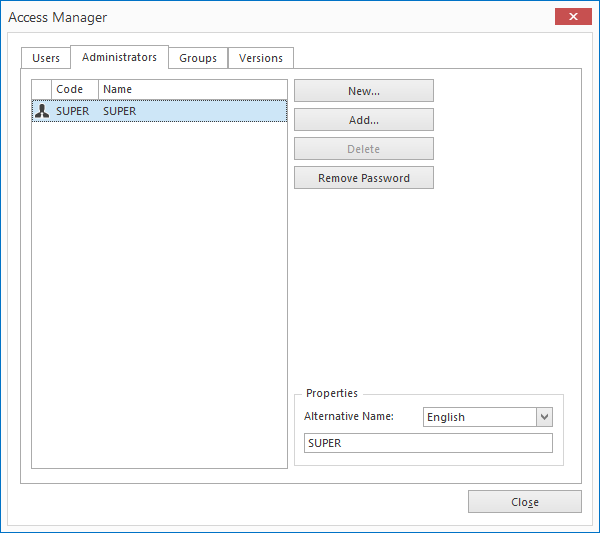
4. Click New to add an Administrator.
The Enter New Administrator window appears:
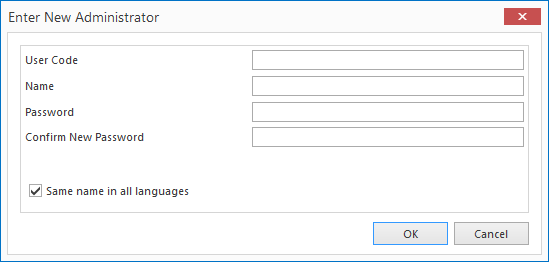
5. Enter the User Code and Password that the administrator will use to log in. Enter a recognisable Name.
6. With the Same name in all languages option you can indicate whether the name is the same in all languages (for information on the use of multiple languages in the database, see Language). A different name can be set for each language in the first window.
7. Click OK to add the new Administrator.
Note: It is not possible for a User account to also have Administrator rights.
Administrators and Users can change their own password. See Passwords for more information.
To Add a Administrator from the Active Directory,
1. Select the Administrator tab in the Access Management window
2. Click Add.
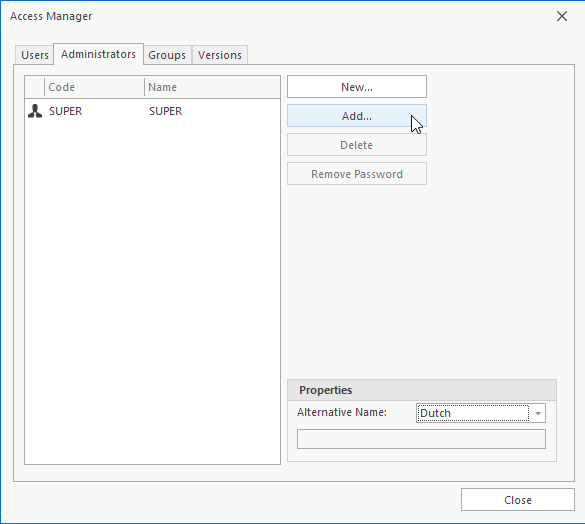
After clicking Add, the following screen will be shown:
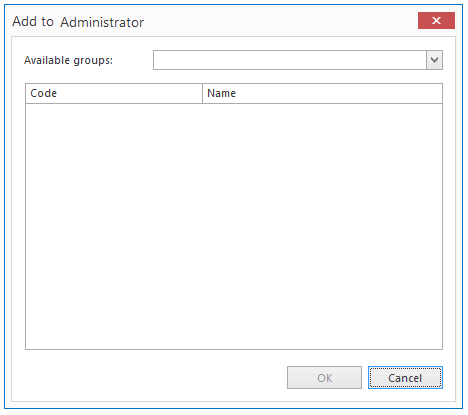
3. Select from the available Active Directory groups the user that you want to add as administrator. Note that you can only select users from a local Active Directory, not an Azure Active Directory unless you are working with Mavim Online.
4. Next open the Database Manager and enable the option Windows Authentication to be able to login with the Windows user account.
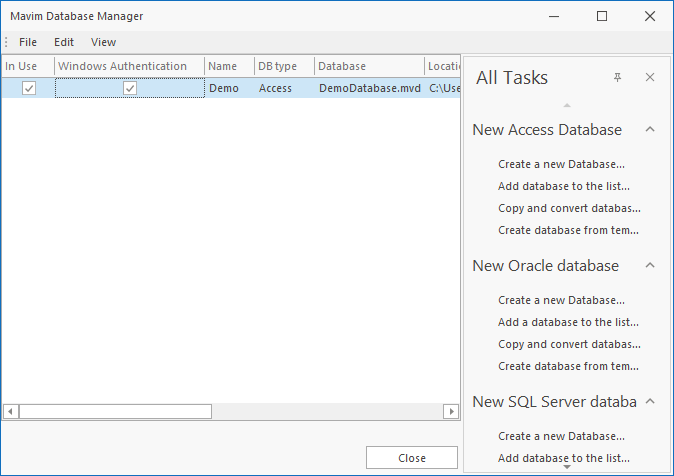
To be able to enter the (windows) username manually, disable the option at Windows Authentication.
Deleting and Administrator Account:
The following steps explain how to remove an Administrator account:
1. Log in as an Administrator.
2. Select Access Management from the Administration tab.
3. Select the Administrators tab in the Access Manager dialog.
4. Select the Administrator account to be removed from the list on the left-hand side.
5. Click the Delete button.
