
Set password:
Passwords can be set by administrators for both administrators and users in order to secure access to a database. This is done during the creation of the Administrator and User accounts.
(see: Administrator Management and User Management)
Change password:
It is possible for users and administrators to change their own passwords. Simply follow these steps:
1. From the Tools tab select Change Password.
A new screen will appear:
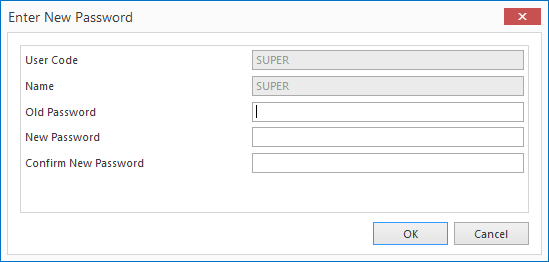
2. Enter the old password, the new password and confirm the new password.
3. Click the OK button to complete the creation of the new password.
Remove password:
If a user has forgotten his or her password, the Mavim administrator must be contacted to have the password deleted. The user can then log in without having to enter a password. Once logged in, the user can enter a new password (as explained above in the Change password section).
To remove a password:
1. Log in as an administrator.
2. From the Administration tab select Access Management.
3. Select the Users or Administrators tab.
4. Select the user/administrator whose password you want to delete.
5. Click Remove Password.
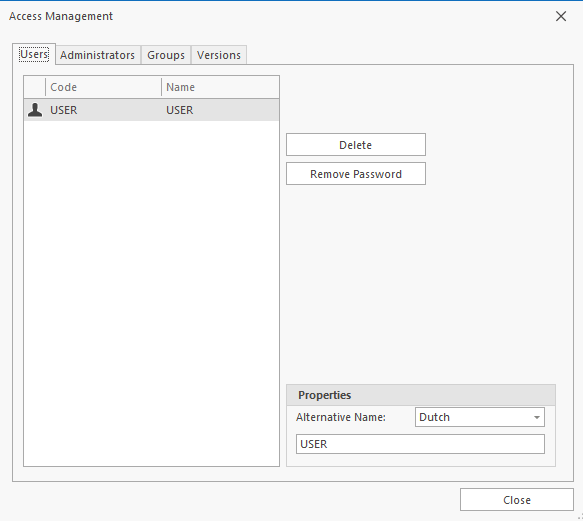
Note: An administrator can also enter a temporary password after removing the forgotten password. The temporary password can then be given to the user with a request to change the password immediately. This procedure prevents access to the database without the need for a password.
