
If a user has access to a database, he or she has access to all topics within that database. Access to the descriptions of the topics and their relationships can be limited by applying Read or Edit rights to the topics.
Please note: Adding Read permissions to a topic only means that the topic name and description cannot be changed. It is however still possible to do the following with a topic that has Read Only permissions:
· Add relationships
· Create Matrix
· Create Report
· Publish directly from the Topic
· Copy and Couple Copy the Topic
It is possible to add rights to the following topics in the tree:
· All topics under the working area (yellow filing cabinet)
· All created versions (green filing cabinets) and imported versions (purple filing cabinets). It is only possible to apply Read access rights to versions.
Applying Rights to a Topic
One requirement for setting read and write permissions is that User Codes and Groups already exist. For information on creating User Codes and Groups, see: User Management and Group Management.
Only administrators have the ability to assign users, groups and security for each topic. For more information on creating administrator accounts, see: Administrator Management.
Access rights are assigned for each group. If permissions have been assigned for any given group, users who are not part of that group no longer have access to the topic for which the security has been set. Unassigned users will still be able to see the topic but they will not be able to see the topic descriptions or relationships.
It is possible to assign multiple groups to a single topic. If a user is part of multiple groups, then the sum of the rules will be applied. Therefore, if a user is part of a group that has read rights as well as a group that has write rights, the user will have write rights (as read rights are part of write rights).
Read and Write permissions are applied to a topic as follows:
1. Select the topic in the Topics pane to which you want to apply permissions.
2. Select Properties from the Edit tab or press the F4 key.
3. In the Properties windows, select the Permissions tab.
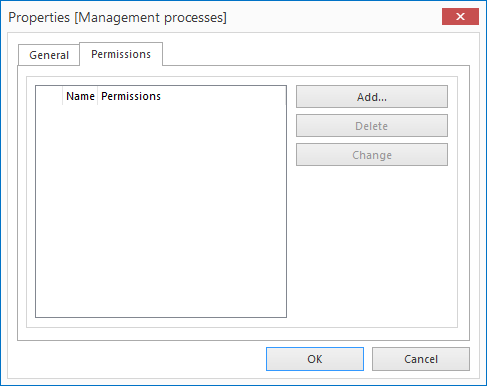
4. Click the Add button. This will show a list of all available groups you can select from.
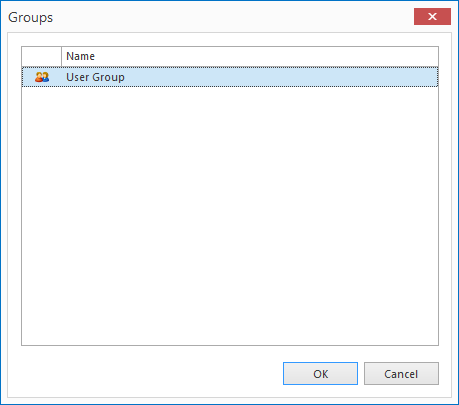
5. Highlight the group or groups (you can use the SHIFT or CTRL keys to select multiple groups) to you want to give access to this topic and click the Select button.
6. Once you return to the topic properties window, you can highlight groups and click Change Permissions button to toggle between Read and Edit rights.
To remove an assigned group from a topic:
1. Ensure that the Permissions tab is selected in the topic's properties window.
2. Highlight the group you want to remove.
3. Click the Delete button.
Note: Any rights that are assigned take effect immediately.
Access Permissions can also be applied to Matrix and Report definitions. If configured with Read Only permissions, it will no longer be possible to edit the definitions.
Note: In order to place access permissions on Matrix or Report Definitions, the Objects branch will need to be enabled.
