In the Dyanmics Connection manager, links between Mavim topics and Dynamics screens can be managed.
The Connection manager can be opened using one of the following options:
- In the ribbon select Tools tab > Web section > External connections website > Dynamics...
- In the ribbon select Edit tab > Couple Topic with section > Dynamics...
- Open the context menu of a Mavim topic and select Couple Topic with > Dynamics...
The Dynamics Connection Manager has two different view options: Topic or Connection.
Using the eponymous buttons (top left) you can change view.
· Topic view: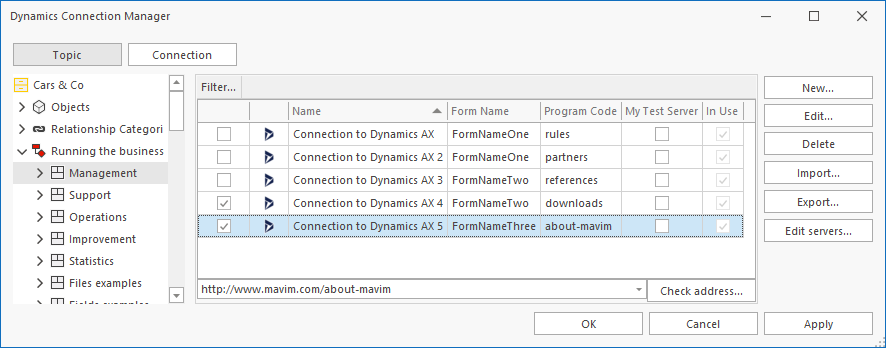
In this view the Mavim topics tree is located on the left and the Dynamics screens are listed on the right.
In this view, the selected topic is the point of reference: It is very clear which Dynamics screen the topic is linked to.
You can easily connect and disconnect a topic to/from multiple Dynamics screens. Read more: Couple with Dynamics screens.
· Connection view: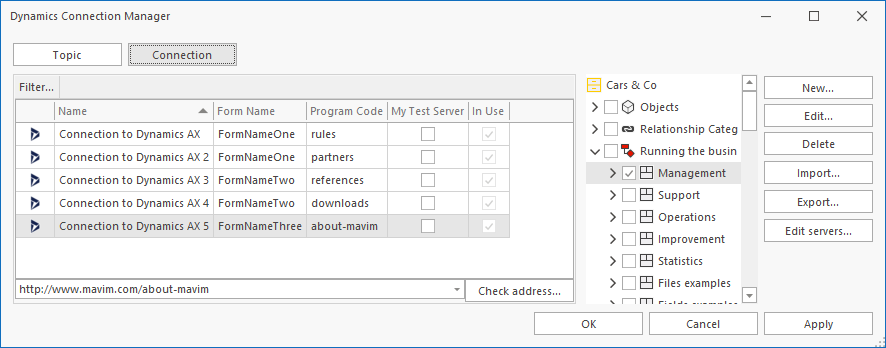
In this view the Dynamics screens list is located on the left and the Mavim topics tree on the right.
In this view the selected Dynamics screen is the point of reference: It is very clear which Mavim tree topic(s) the Dynamics screen is linked to.
You can easily connect and disconnect a Dynamics screen to/from multiple Mavim tree topics. Read more: Couple with Dynamics screens.
· Both views have six buttons on the right:
- New...
By using this button, you can add new Dynamics Connections.
Read more: Edit connections to Dynamics screens
- Edit...
By using this button, you can modify AX Connections.
Read more: Edit connections to Dynamics screens
- Delete
By using this button, you can delete AX Connections.
- Import...
By using this button, you can import a specific Dynamics AX Excel sheet.
Read more: Import Dynamics Excel sheet.
- Export.
By using this button, you can export to create a Dynamics AX Excel sheet.
Read more: Export Dynamics Excel sheet.
- Edit Servers...
By using this button, you can edit the current servers which can then be selected when creating Dynamics links.
Read more: Select Dynamics server
On the top of the Dynamics screens list section the Filter... button is available.
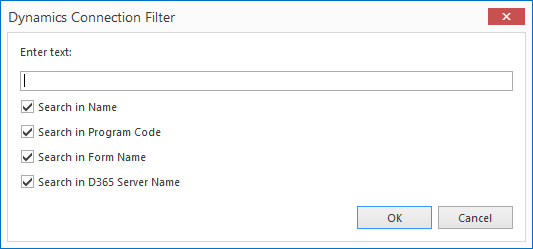
Using this button a filter screen will be opened. Here you can enter a text (partial) to refine the Dynamics screens list: