
In a Visio chart you can add, modify and delete relationships. If you save the chart your changes are also saved in Mavim.
Add Existing Relationship:
Relationships that already exist in the Mavim database can be added to a Visio chart.
See Show Existing Relationships in Chart.
Add New Relationship:
The relationship categories are shown as standard in the Mavim Flow Chart Stencil in Visio.
1. Select the required relationship type in the flow chart stencil. In the example below the Who category is selected.
2. To indicate to which topic you wish to add a relationship, you need to drag the relationship category onto the existing topic. See example below:
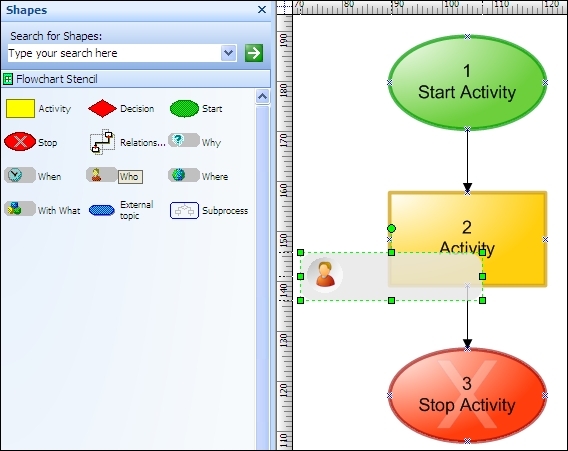
3. Drag the topic to the required location.
4. A screen is opened in which you select the topic, with which you want to create a relationship from the relationship category.
Delete Relationship:
In the Mavim relationships screen, select the relationship that you wish to delete, and press the DELETE key. The deleted relationship is no longer show in Visio.
Modify Relationship:
You can modify a Whereto/Wherefrom relationship that is between process steps in a chart. Select the relationship in the chart and then move one of the ends to another topic or another connection point of the topic
Change Direction of Relationship (Whereto/Wherefrom relationships):
See Reverse Relationship.
