
You can create a generic chart as follows:
1. Select a topic in the topics screen.
2. Go to the Edit tab followed by Overview > Generic chart.
The options screen is opened:
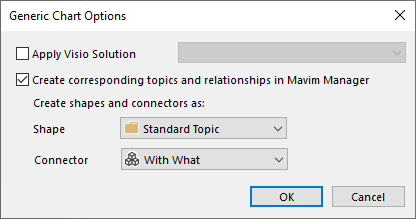
From here you have the following options:
Use Visio Solution:
Here you can decide if you want to use a Visio solution or not. You can only use a Visio solution if this is created and saved in Mavim. See Create Visio Solution.
If you do not select the Apply Visio Solution option, the Visio will open the standard template. Select a template. In Visio, the corresponding stencils are used.
Now select a stencil you want to use. Mavim shows the stencil in the same way as it does for other charts.
Create corresponding topics and relationships in Mavim: This option offers the possibility of saving shapes created in Visio as topics and relationships in Mavim. This is performed when the generic chart is saved. The topics are then placed as subtopics under the topic selected for the creation of the generic chart.
With the Shape and Connector options, you can determine the default topic type and relationship type for the created shapes in the generic chart in Visio.
If you do not use the Create corresponding topics and relationships in Mavim option it will still be possible to link parts of the chart manually in Mavim, see Manually Connecting Shapes with Topics.
