Before you start
Make sure you have:
-
The MPM Admin permission enabled in your Mavim Connect Center account.
-
A valid Mavim Process Mining license.
Steps to set up the role structure
1. Go to Admin settings
-
Sign in to Mavim Process Mining at https://processmining.mavimcloud.com/.
-
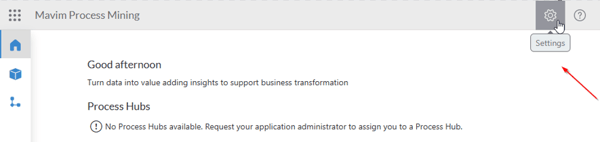
Click the cogwheel icon in the header bar to open Admin settings.
2. Open the Process Hub
-
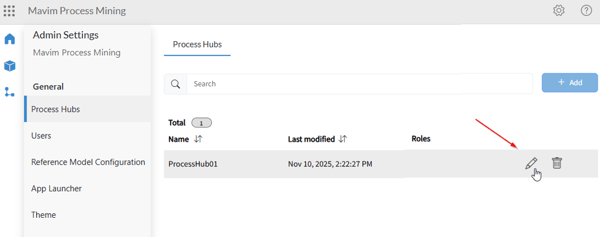
Locate the Process Hub you want to edit.
-
Click the pencil icon to open the edit view.
3. Add a new role
-
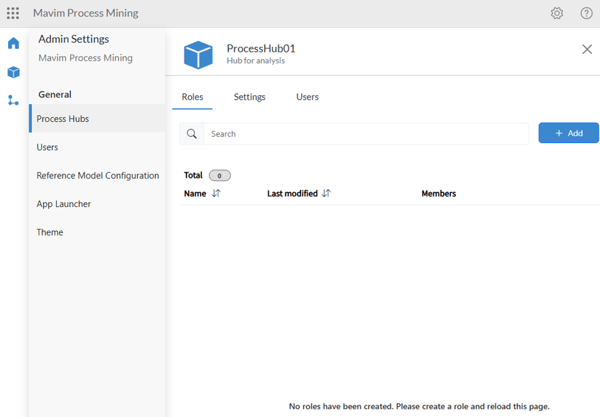
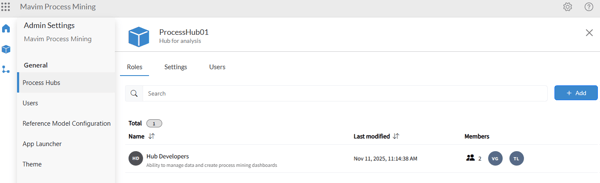
Select Add to create a new role within the Process Hub.
4. Create the role
-
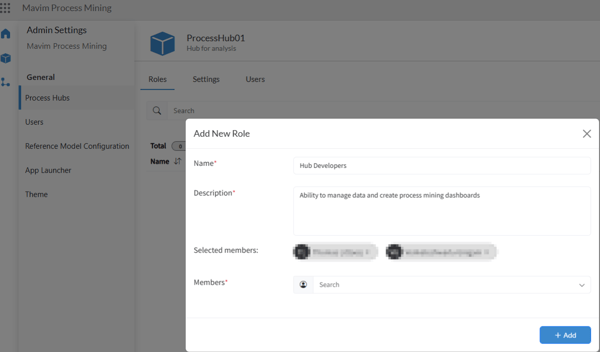
Enter the role’s name and description.
-
Add users as members of this role.
5. Set functional permissions
-
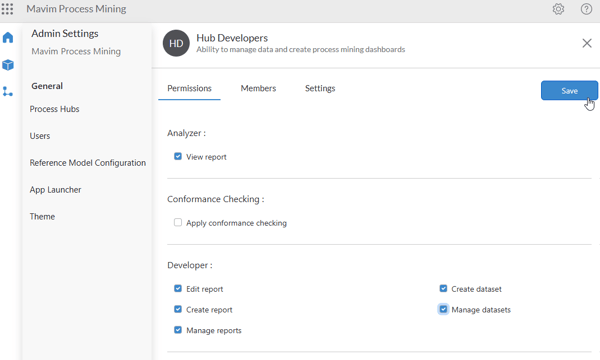
Go to the Permissions tab in the Edit Role page.
-
Select the functional permissions this role should have.
These permissions control what actions users assigned to the role can perform.
6. Assign or unassign users
-
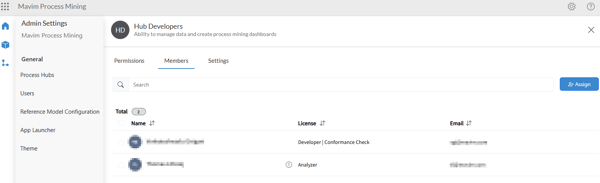
In the Members tab, assign or unassign users as needed.
7. Update name or description
-
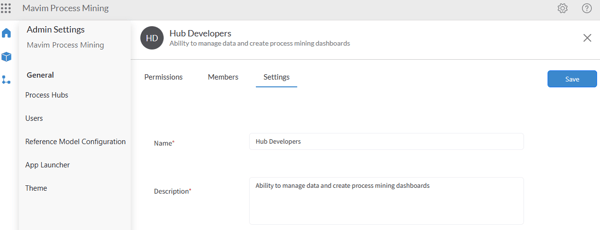
In the Settings tab, you can change the name or description of the role at any time.
8. Save your changes
-
Click Save to confirm your updates and return to the Process Hubs overview.
9. Confirm user access
-
Assigned users now have access to the Process Hub.
-
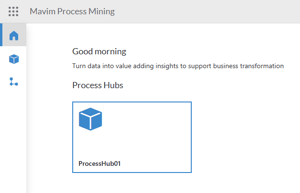
They can see it listed on their Home screen after refreshing the page (F5).