
Each topic has a number of properties. You can access these properties in several ways:
- Select a topic.
- Press F4, or select Properties on the Edit
In the window that appears, you can change the properties of the selected topic, where permitted.
Note: If you want to change the properties Type or Icon for several topics, it is easier to use the Change Topic Type window. See: Change Topic Type.
Topic properties are separated into multiple tabs that will be detailed below.
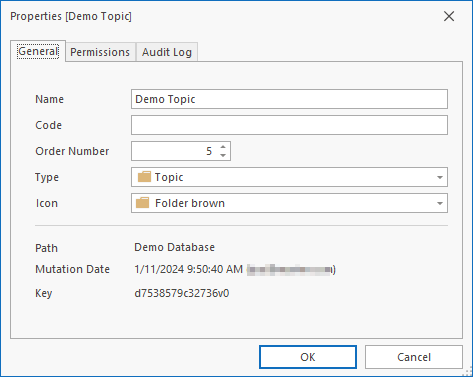
Database Connections
The properties screen for the Mavim Database (root level topic) is different from all other topics in a Mavim Manager database. On the Connections tab in the properties of the database topic, you can see which users are logged into the database:
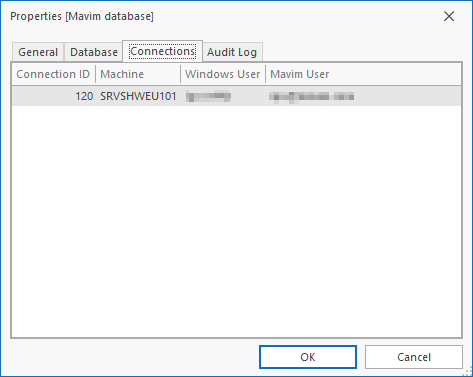
General
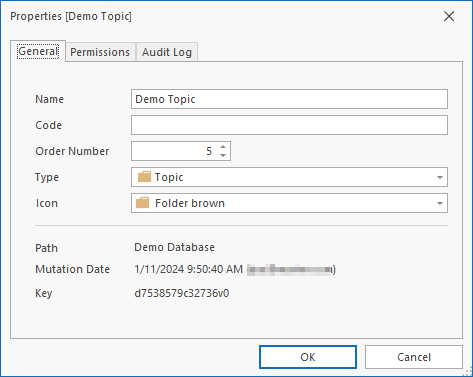
The General tab contains the following data for each topic:
Name
An unrestricted field in which you can enter any name for the topic.
Code
This is an unrestricted text field in which you can enter a text that can be used e.g. for sorting (see
Sort and Renumber Topics) and searching (see Find and Replace in Topics).
Order Number
The sort order number of a topic in the hierarchy. See also: Sort and Renumber Topics
Type
Every topic is of a certain type. There are a number of predefined types of topics available, as well as a number of user-definable types. Note that topic types are organized in groups within the drop-down.
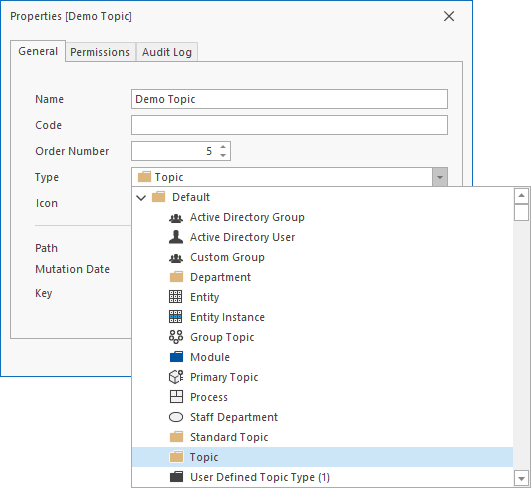
See Topic Type.
Icon
Every topic has an icon that is visible in the Topics screen. A default icon is set for every type of topic. Depending on the type of topic, it is possible to change the icon.
See Icons
Path
The complete hierarchical path of the selected topic, from bottom to top in the tree.
Mutation Date
The date and time when the topic was last modified.
Key
The unique number with which a topic is stored in the database.
Permissions
You can restrict user permissions on topics at any level in the tree on the Permissions tab: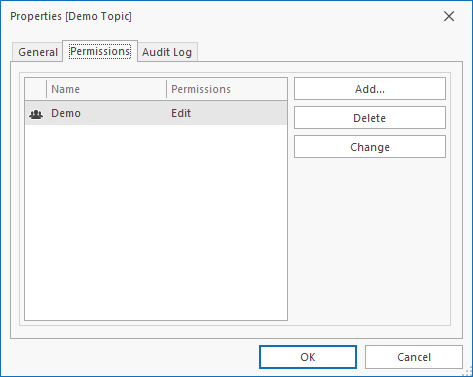
You can read more about this under: Security on Topics.
Audit Log
On the Audit Log tab you can see a table of information regarding actions taken on a Topic.
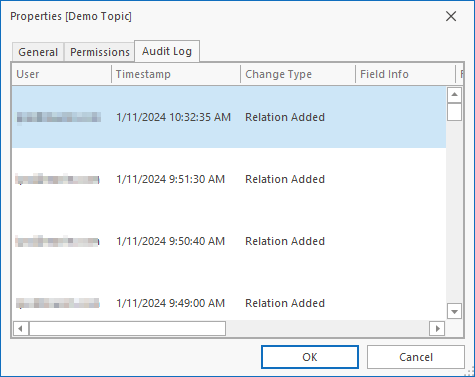
The columns available on the Audit Log screen are as follows:
- User - The user who performed the action
- Timestamp - The moment the change took place (date and time)
- Change Type - The type of change that was made
- Field Info - Shows the Field Set and Field for the field that was changed
- From Value - The value before a change was made
- To Value - The new value after a change was made
- Log ID - A unique identifying number for each Audit Log entry
