
If topics from an imported version are couple-copied into the yellow file cabinet (see Couple Copy Topic), these coupled copies can be updated when a new version is available (an updated version). Updating means that all changes to the topics are also applied to the coupled copies. Their relationships will be copied to the newer version.
To do this:
1. Import the update (see Import Version).
2. Compare the update with the previous version (see Compare Versions) to see what has been changed.
3. Select the update in the Topics screen below Imported Versions.
4. Select Check and Update Version from the right-click menu.
The following window is opened:
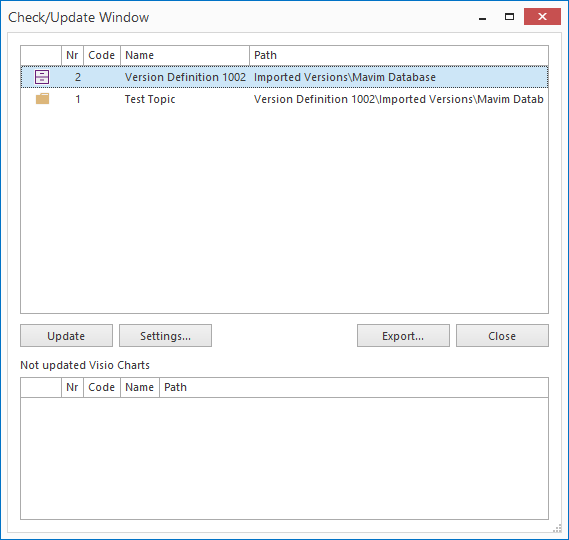
In the top part of the window, all topics and the related information that are included in the update are displayed. In the column * the number of coupled copies of the topic that currently are in the database is specified. In the lower part of the window, Visio charts that were not automatically modified are displayed: see last part of this help text.
5. By clicking Save As, you can archive this overview in a text file (*.txt) at a location of your choice. You can open this text file in a word processor and print it.
6. Before you actually perform an update, you can change a number of settings that are important to the update process. Click the Settings button. The following window appears:
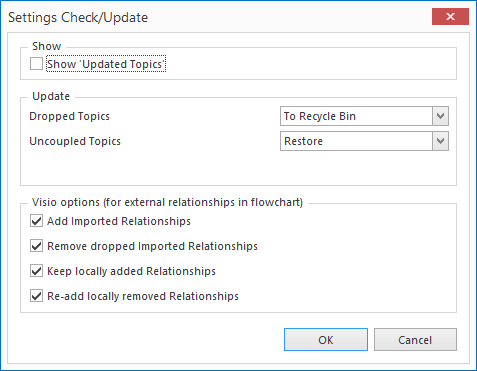
Hide Updated Topics:
Here you can hide updated topics so that only topics that were not updated are displayed.
Dropped Topics:
If a topic is still couple-copied in the database but has been excluded from the update (so it has been deleted in the original database), you can specify set here how such a topic will be handled. The options are:
· Uncouple Copy: the topic remains in the database; there is no connection with the imported version.
· To Recycle Bin: the topic is placed in the Recycle Bin (see Recycle Bin).
· Delete: the topic is permanently removed from the database.
Uncoupled Topics:
If a topic has been uncoupled (see Uncouple Copy), there are two options:
· Leave: uncoupled copies remain uncoupled.
· Restore: uncoupled copies are coupled again.
Note: If a couple-copied purple filing cabinet has been completely uncoupled, the coupling cannot be restored. The restore function only works for uncoupled topics on a lower level.
Visio Options (for external relationships in flowchart):
If a flowchart (see Flowchart) contains external relationships, and the chart is part of the update, these relationships are updated in the couple-copied chart in the yellow file cabinet. The following settings can be modified:
· Add Imported Relationships: show new external relationships of the chart from the purple file cabinet in the couple-copied chart in the yellow file cabinet.
· Remove dropped Imported Relationships: do not show external relationships in the couple-copied chart in the yellow file cabinet if they have been dropped from the purple filing cabinet.
· Keep Locally added Relationships: retain the external relationships that were added locally in the yellow filing cabinet.
· Re-add locally removed Relationships: re-add external relationships that were removed in the yellow filing cabinet.
7. When you have adjusted the settings as needed, you can click OK to return to the former window.
8. Click Update to start the update process.
9. It is possible that local changes to a Visio chart in the yellow filing cabinet cannot be merged with the chart from the purple filing cabinet. Those charts are displayed in the lower part of the window below Not updated Visio Charts.
