
1. The Create Version screen appears:
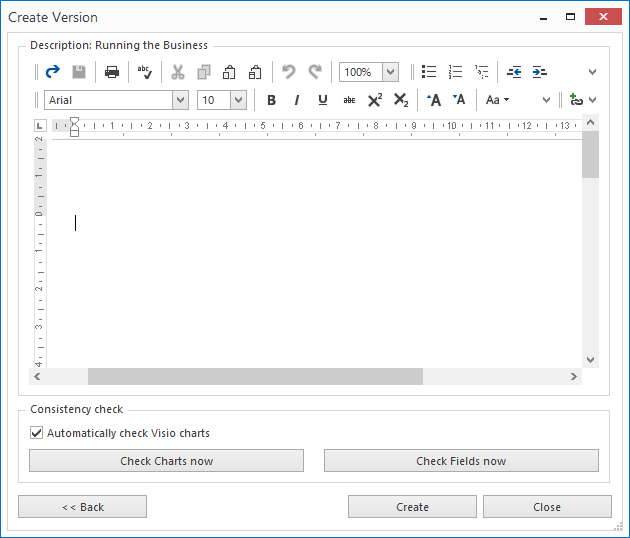
2. The screen contains the sections Description and Consistency Visio Charts:
Description:
This is the description screen in which you can give an explanation of the version. The description is visible in the Description screen of the version.
Note: If a version has been created, you can add hyperlinks in its description screen to the topics that are included in the version.
Consistency Visio Charts:
· If there are one or more Visio Charts included in topics that are part of the selection, it is possible to check whether the Visio charts are still consistent with the current topic structure: after a chart has been created, the topic structure in the tree may have been changed even though the chart has not been reopened to incorporate those changes.
· You can click the Check Charts now button to perform consistency checks before the version is created.
· If you intend to perform checks before the creation of every version, then choose the Check Automatically option. This automatically performs the consistency checks as the version is created.
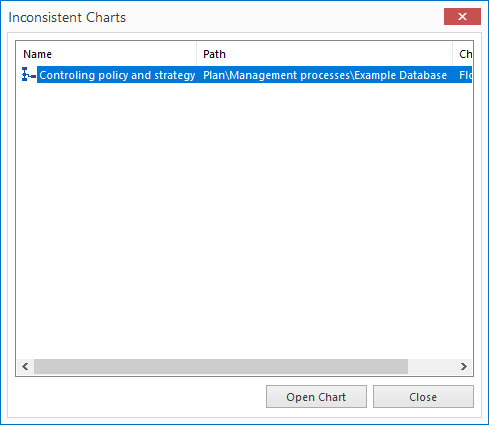
· If one or more charts are not consistent with the topic structure, they are shown in a list. With the Open button, each chart can be opened and the inconsistency removed.
Consistent Fields:
If creating a new version, required fields are always checked to ensure they contain a value. Another check is also done for topics that have multiple fields of type "Owner for Mavim Portal" as any topic can only have one field of this type assigned.
See: Checking Fields.
3. Click the Create button to create a version based on the selected version definition.
4. The version appears as a green filing cabinet under Created Versions in the Topics screen.
Note: After a version has been created, it is still possible to add hyperlinks in the description screen to topics included within the version. This way a version description can be given with direct links to the relevant topics.
Note: A version/green filing cabinet consists of:
1. Every topic that falls within the version definition.
2. All its subtopics.
3. All topics that do not fall within the version definition but have relationships with the topics mentioned above are included in the External References folder.
4. All topics that do not fall within the version definition but are referenced via hyperlinks in the description screen of a version are also included in the External References folder.
5. All of the revision information added by the versions developer.
