
Steps to create a new website
1. Check all settings in the Create new website screen
Make sure all required fields are completed before publishing.
2. Set the theme
-
If no theme is selected:
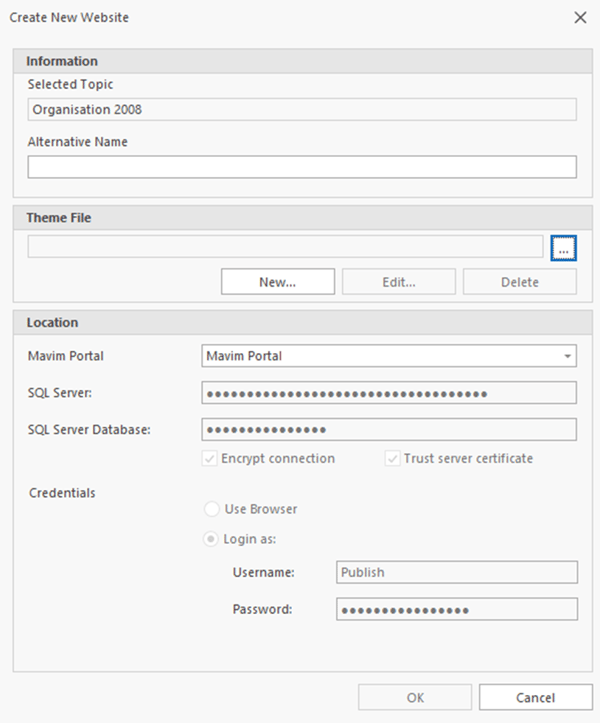
- Click the ellipsis
 button under Theme file.
 - Navigate to:
S:\Mavim\Websettings(this folder opens by default).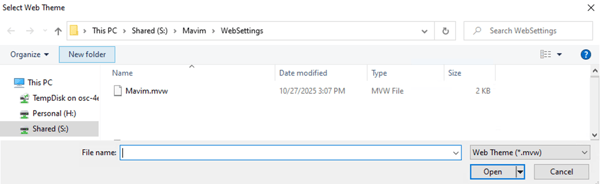
- Select a .mvw file and click Open.
- Click Edit to review the settings in this theme.
- Click the ellipsis
-
If no .mvw file is available:
- Click the button New under Theme file.
- Enter a name for the new .mvw file.
- Click Save.
3. Set the location
-
If underLocation the field behind 'Mavim Portal' is empty:
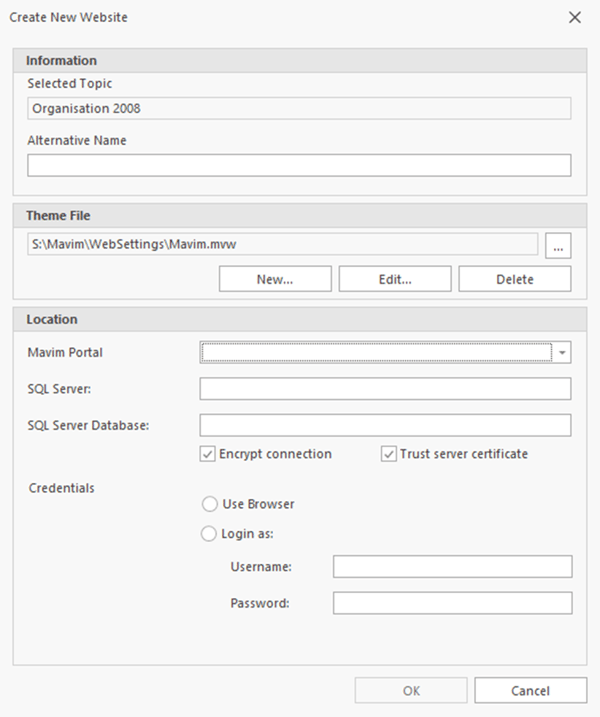
- Click the dropdown menu next to Mavim Portal.
- Select the desired portal.
-
If no portal appears:
- Contact your Mavim administrator and ask them to grant you publishing rights in MCC:
https://connectcenter.mavimcloud.com
Go to the Mavim Portal – Publishing users tab and add your permissions.
- Contact your Mavim administrator and ask them to grant you publishing rights in MCC:
4. Restart the Manager
After the administrator updates your permissions, restart the Manager.
You should now be able to complete the publication.
You should now be able to complete the publication.
Important notes
- A theme (.mvw file) is required to publish.
- Portal access requires publishing rights in MCC.
