Export Feedback Data from the Portal
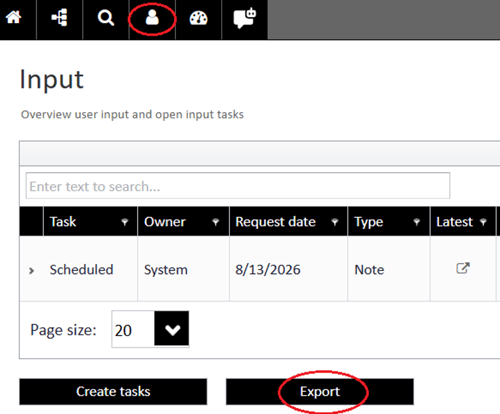
- Open the Input/Feedback overview in the Mavim Portal.
- Scroll to the bottom of the page and click Export
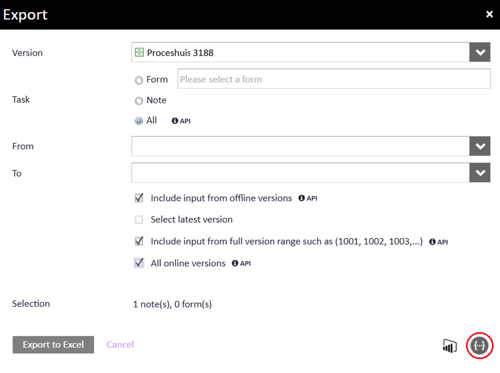
- Select the following export options:
- All
- Include Input Offline Versions
- All Online Versions
- Click the JSON/API icon.
- Click OK.
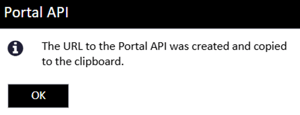
The portal will generate a URL containing the JSON representation of the feedback data.
Import the JSON file into Excel (2 different ways)
1) Import via Web
Excel can connect directly to the data source. Using this connection allows you to:
- Refresh the data directly from Excel.
- Avoid repeating the export process.
To update the report later, simply select Refresh in Excel.
- Open a new blank Excel workbook..
- Go to Data → From Web.
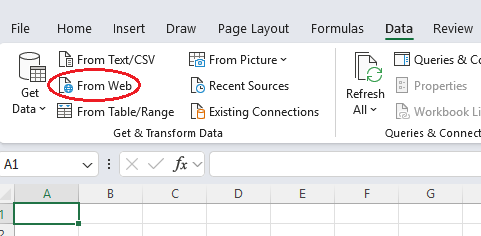
- Paste the generated URL
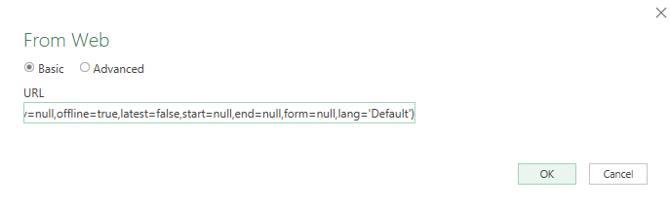
- If authentication is required:
- Select Basic Authentication
- Enter your username and password
2) Import via file
First save the JSON Data
- Open a new browser tab or window.
- Paste the generated URL into the browser address bar and press Enter.
- The browser will display the JSON data.
- Select all content using Ctrl+A.
- Copy the content using Ctrl+C.
- Open Notepad (or another text editor).
- Paste the content using Ctrl+V.
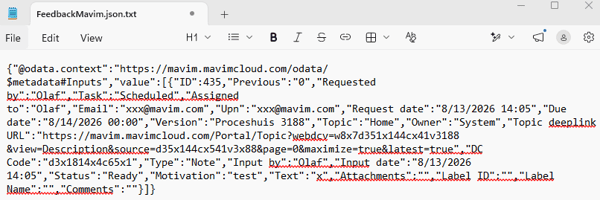
- Save the file with a
.jsonextension, for example: FeedbackMavim.json
You may choose any file name, as long as the file extension remains.json.
- Open a new blank Excel workbook.
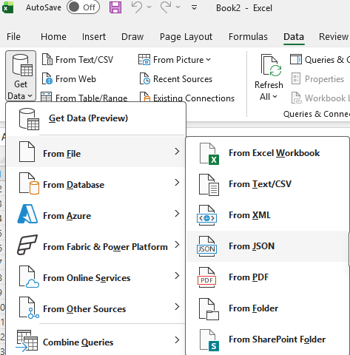
- Navigate to the Data tab.
- Select: Get Data → From File→ From JSON
- Browse to the saved JSON file.
- Select the file and click Import.
Excel will open the Power Query Editor.
Transform the Data
After importing the JSON file, you will typically see the following elements:
@odata.contextvalue(List)
Perform the following steps:
- Right mouse click on List (next to Value) and choose 'Drill Down'.
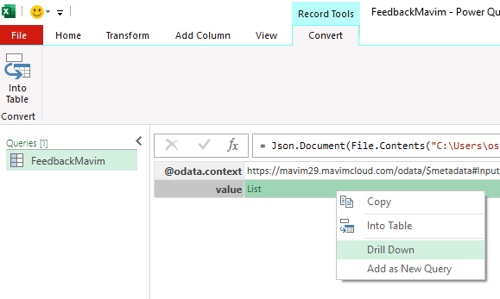
- Click 'To Table'.
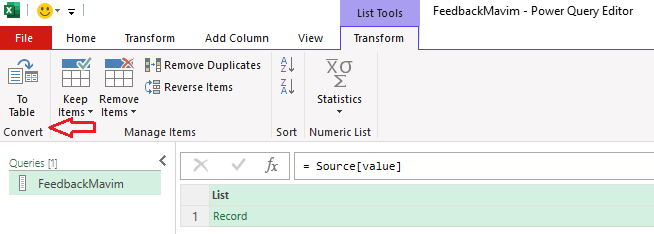
- Click OK.
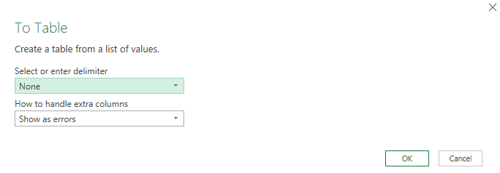
- Click on the 'Columns to Expand' button
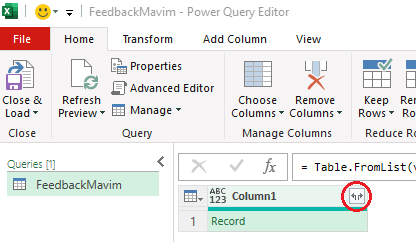
- You can now choose which attributes should be included in the Excel report.
- When the notification 'Load more' appears at the bottom of the Expand Columns, click on 'Load more' and also uncheck the option 'Use original column name as prefix'
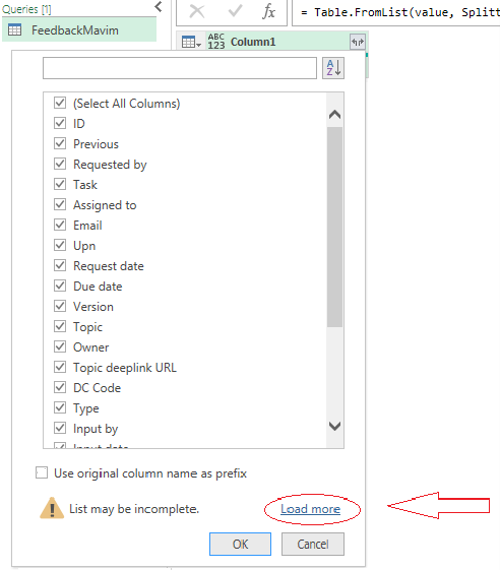
- Click OK
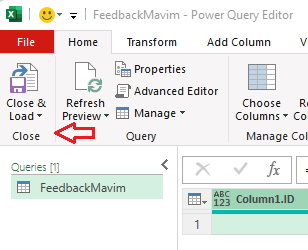
- Select Close & Load.
The report can include information such as:
- Feedback title
- Feedback description
- Tasks
- Submitter
- Creation date
- etc.
After completing these steps, you will have a fully functional Excel report containing all feedback and input information from the Mavim Portal. The data can be filtered, analyzed, shared, or used for further reporting and auditing purposes.