
Why this issue happens
A repeated login message often appears when outdated or corrupted cookies are stored for the Mavimcloud domain. Removing these cookies usually resolves the issue.
Steps to fix the problem
1. Open the browser settings
- In Microsoft Edge, click the three dots in the top‑right corner.
- Select Settings.
2. Navigate to privacy settings
- Select Privacy, search, and services.
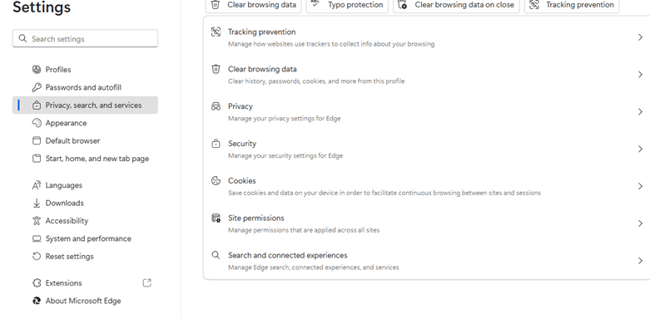
3. Open the cookies page
- Scroll down and click See all cookies and site data.
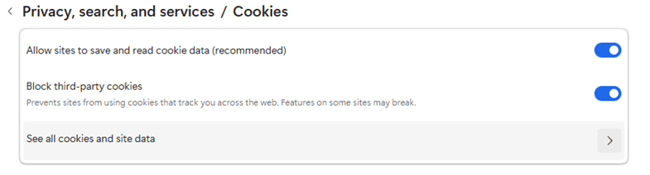
4. Remove Mavimcloud cookies
- Use the search bar and enter Mavimcloud.

- Remove all cookies related to the Mavimcloud domain.
5. Restart the browser
- Close all browser windows and tabs.
- Reopen the browser and try to login again.
5. Important notes, warnings, prerequisites
- Clearing all cookies may sign you out of other websites.
- This solution applies only to Microsoft Edge. If the issue occurs in another browser, follow that browser's cookie removal steps.
- If the login message continues to show, a cached credential or an organization‑wide browser policy may be involved. Contact your IT administrator.
