Make sure you have:
- Administrator role in Mavim Portal
- Administrator in Mavim Process Mining
Steps for enabling Reference models
You need to enable the Reference Models functionality in Mavim Portal to start selecting process charts and mark it as a reference model.
Open Mavim Portal
- Sign in to the Mavim Portal where your processes are published that you want to use for process conformance checking.
Navigate to the Admin settings
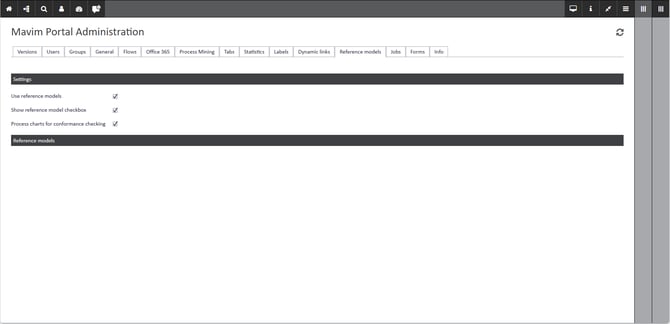
- Navigate to the Portal Admin Settings (via the lock icon)
- Navigate to the Reference models tab
- Enable Use reference models
- Enable Show reference model checkbox
- Enable Process charts for conformance checking
Steps for selecting Reference models
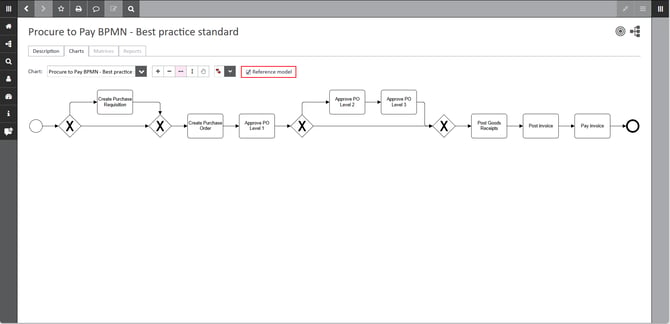
After you have successfully enabled Reference Models can you mark process charts as a reference model. Only charts of the type BPMN 2.0, Flowchart, or Cross Functional Flowchart can be selected.
Navigate to a process chart
- Select one or more process charts that you wish to use for conformance checking.
- You can use the Reference model checkmark to select or deselect this process and mark it as a reference model.
Overview of all the selected reference models
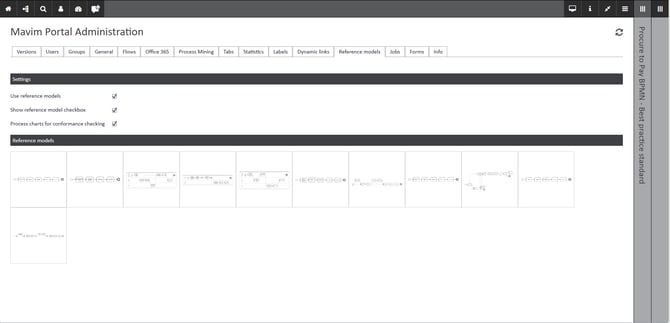
In the Mavim Portal you can see an overview of the selected reference models.
- Navigate to Portal Admin Settings
- Navigate to the Reference models tab
- An overview of the selected reference models is shown. By clicking the process tile you are navigated to the source process.
Steps for configuring Mavim Portal API account
For Mavim Process Mining to fetch the reference models from Mavim Portal you need to setup authentication between Mavim Portal and Mavim Process Mining.
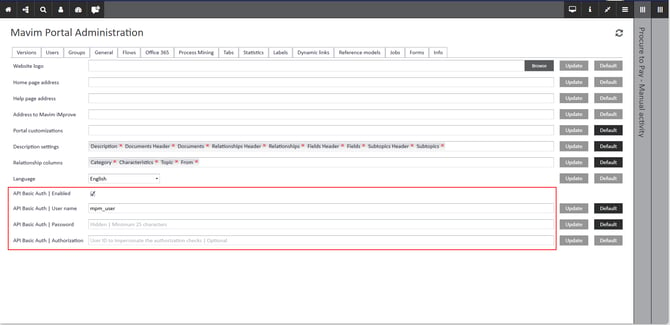
Navigate to Portal Admin settings
- Open the Portal Admin Settings (via the lock icon)
- Navigate to the General tab
Create or use your Mavim Portal API account settings
- Enable the API Basic Auth
- Create a username or use existing username
- Create a password or use existing password
- Make sure you save the password you just created, as it cannot be retrieved from the Mavim Portal afterwards.
Steps for configuring Mavim Process Mining to fetch the reference models
The Portal API account needs to be configured in Mavim Process Mining, such that the reference models can be fetched.
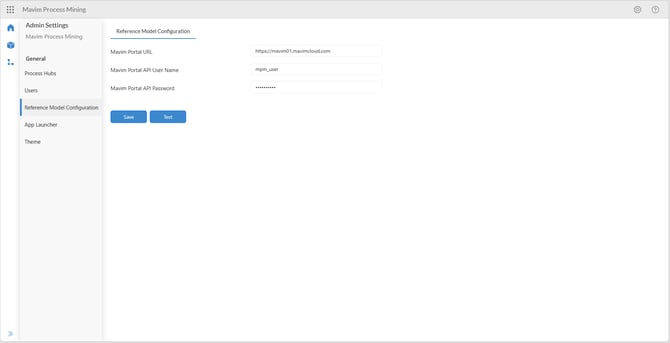
Navigate to Mavim Process Mining Admin settings
- Open the Admin Settings (via the gear icon)
- Navigate to the General tab
Enter the API details
- Enter the Mavim Portal URL
- Enter Mavim API Username
- Enter Mavim Portal API password
- Save the connection
- You can test the connection to test if a successful connection is established and selected reference models can be fetched.
Validate if Reference Models can be fetched into Mavim Process Mining
Navigate to the Reference Models
- In the Side Nav navigate to the Reference Models
Overview of the Reference Models
The selected reference models from the Mavim Portal appear in the overview.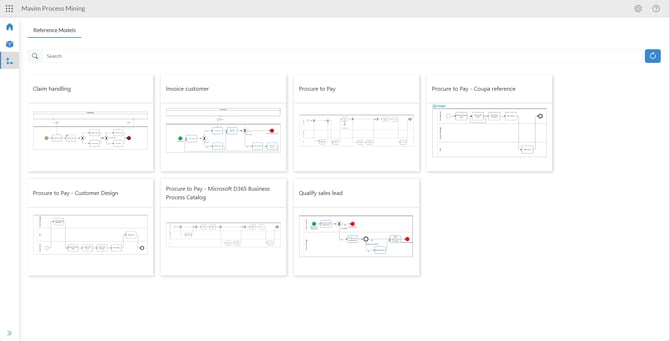
You have now successfully set up the reference model configuration.