Symptom
When working with diagrams, the layout may change unexpectedly after:
- an activity is added, removed, or inserted;
- a connector (line) is modified;
- the chart is saved and reopened;
- the chart is published.
This can lead to:
- shifted activities;
- changed routing of lines;
- overlapping objects;
- a less readable process flow;
- differences between the view in Mavim Manager and the published version.
Cause
Mavim uses the layout functionality of Microsoft Visio. This automatically applies a so-called auto-layout when changes are made to the process flow.
This functionality attempts to create space and automatically position objects so that a diagram remains technically correct. However, in complex diagrams, this can result in a layout that is less logical or less readable than the manually applied layout.
The routing of connectors is also redetermined by Visio upon opening or publishing. This can cause lines to follow a different route than originally set manually.
Is it possible to disable auto-layout?
There is no supported option to completely disable automatic layout in Visio/Mavim.
The layout is determined by the underlying Visio functionality.
Workarounds
1. Save regularly
Save changes regularly, especially before making major adjustments to the schema.
2. Save before major changes
Create a first concept before adding, removing, or moving activities.
If a layout adjustment produces undesirable results, you can optionally close without saving so that the previous design is preserved.
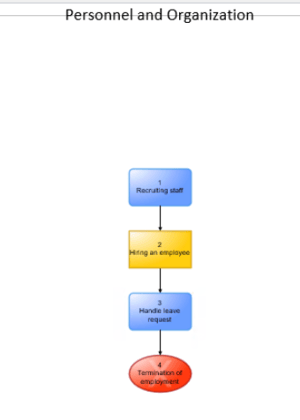
3. Use the Layout function
Via: Right-click → Layout
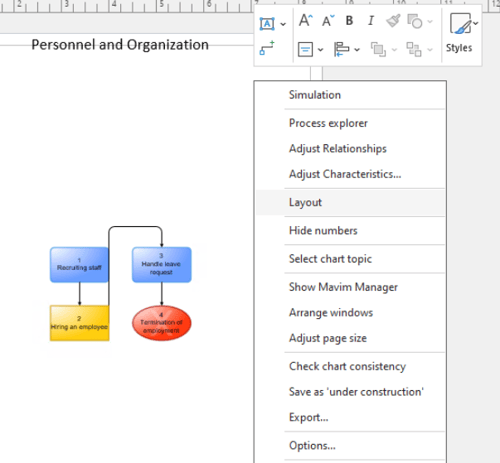
The results depend on the complexity of the schema and do not always result in an improvement.
4. Create extra space
When connectors are displayed differently after saving or reopening, it often helps to:
-
add more space between objects;
-
align objects at the same height; • create sufficient free space above or below decisions and gateways.
This gives Visio more options to keep line routing consistent.
See also this examples:
example 1: Below is an example of a CFF where 2 lines go to 2 shapes named ‘Adjustments needed’ run neatly above each other in Mavim Manager, but appear differently after publication:
Mavim Manager: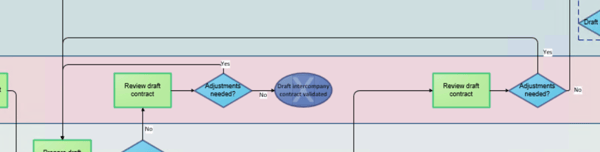
After publication:
The connection is saved correctly, but upon reopening or publishing, the line is rerouted by the underlying Visio layout. This attempts to keep connections between shapes in the same lane within that lane as much as possible.
As a result, the lines may be displayed differently than in Mavim Manager during editing.
In this case, a workaround is to place the shape 'Adjustments needed' on the right side slightly higher. This prevents the automatic layout from intervening.
example 2: Below is an example where 1 line is set along the top, but is displayed along the bottom after saving in Mavim Manager (see the red arrows).
Mavim Manager: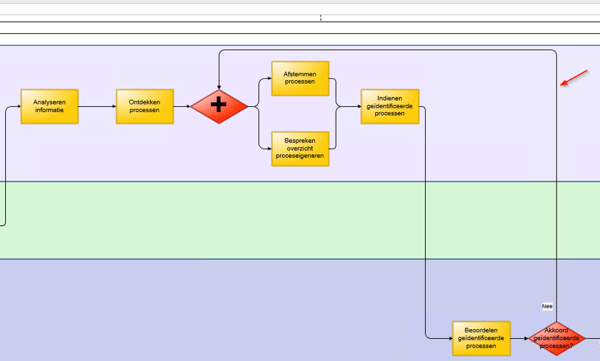
After publication: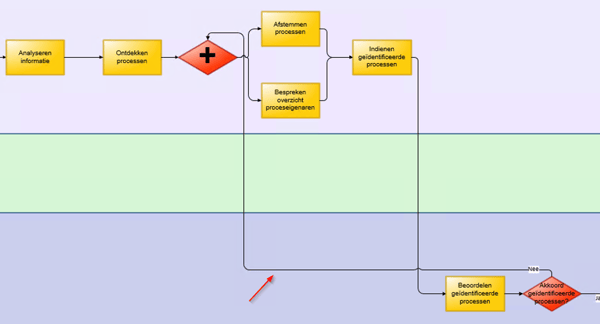
In this example, the underlying Visio layout detects insufficient space at the top of the shapes. As a result, the line is automatically routed via a different path when the diagram is reopened.
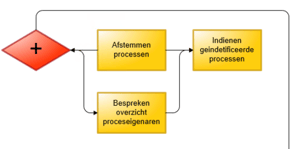
To ensure the line runs along the top, the solution is to place the 'Afstemmen processen' shape at the same height as the '+' selection shape.
5. Keep charts organized
With larger charts, the risk of unwanted layout adjustments increases. If possible, consider:
-
splitting processes;
-
using subprocesses;
-
simplifying complex branches.
Known limitation
This behavior is known in the combination of Mavim and the underlying Visio layout engine. Both object positioning and connector routing can be recalculated during editing, saving, reopening, or publishing. Mavim itself has only limited influence over this.
When to contact support?
Contact support when:
-
a layout demonstrably becomes corrupted;
-
objects disappear;
-
connectors are saved incorrectly;
-
the problem is reproducible.