
1. Open the SharePoint Connection Manager using one of the following options:
· In the ribbon select Tools tab > Web section > External connections website > SharePoint...
· In the ribbon select Edit tab > Couple Topic With section > SharePoint...
· Open the context menu of a Mavim topic and select Couple Topic with > SharePoint...
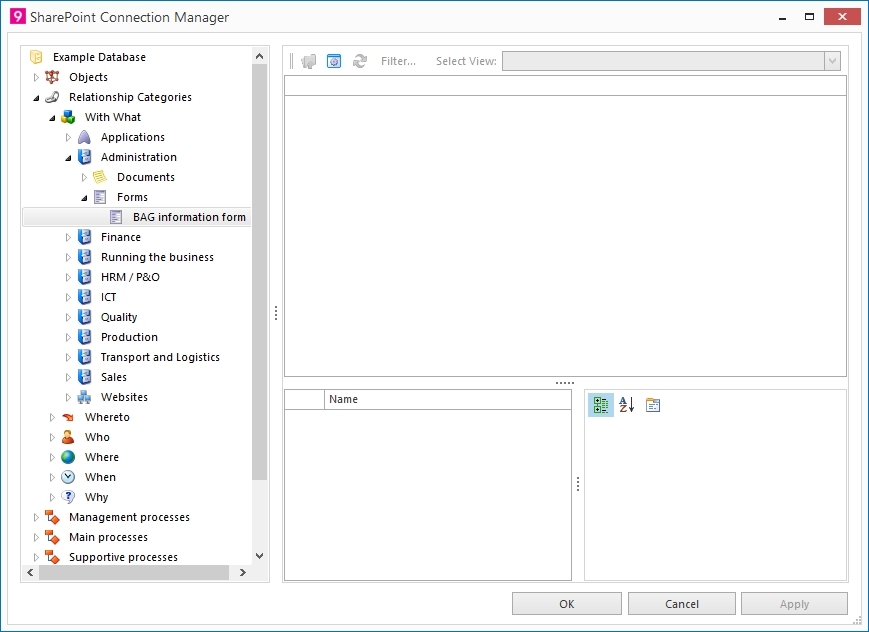
2. Click button 
The following screen appears: 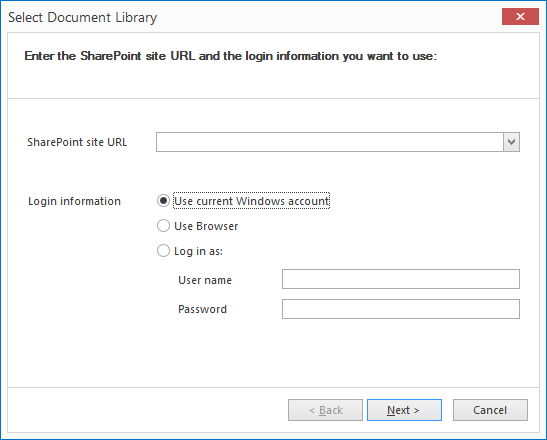
3. Here enter the URL to the appropriate SharePoint Site which contains the Document Library with the items you want to couple with.
Using the drop down for the URL to Document Library field, you can see URLs that have already been entered. This is useful for switch between different connections.
Note: Use Browser when connecting to Office 365. After succesfully loging in, your login information is kept and you do not have to login each time you want to connect to the document library. Use this option when your Office 365 is using Multi Factor Authentication (MFA).
4. Click Next.
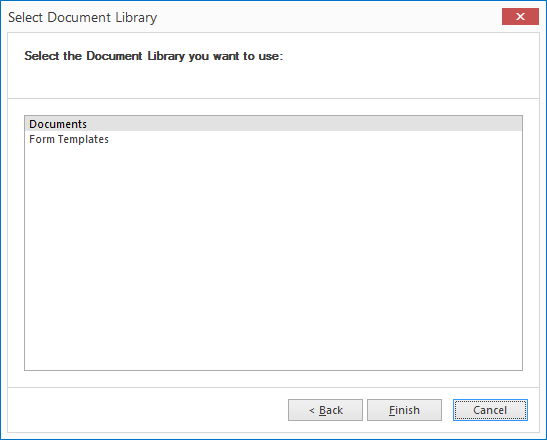
5. Select the Document Library from the list and click Finish
The SharePoint Connection Manager shows the documents in a list.
6. Read more about this in Connection Manager: SharePoint.
7. To create couplings, see: Couple with SharePoint Document Library items.
