Overview of available markers
Note: markers are case-sensitive. Therefore, use the markers exactly as described below.
| Marker | Description |
|---|---|
%Recipient% |
The recipient of the email. |
%TriggerUser% |
The user who functions as the starting point of the rule. |
%TriggerTime% |
The time at which the rule was activated. |
%TriggerTopic% |
The subject on which the rule was triggered. |
%SearchTopic% |
The subject from which the search was conducted. |
%SearchVersion% |
The version from which the search was performed. |
%SearchKeywords% |
The keywords in the search query. |
%SearchScope% |
The scope of the search query. |
%TriggerSummary% |
Provides an overview of the topics that meet the trigger. |
%TriggerFieldName% |
The name of the field used in the trigger. |
Example
The markers can be used in the body of an email in the following way, for example:
Dear %Recipient%,
The user %TriggerUser% has filled in a note on the subject %TriggerTopic% at the time %TriggerTime%.
Yours sincerely,
Pay attention to multiple triggered topics
When a Flow can trigger multiple topics simultaneously, it is important to distinguish between %TriggerTopic% and %TriggerSummary%.
TriggerTopic
%TriggerTopic% refers to one specific topic on which the rule is activated.
When multiple topics are triggered simultaneously by the same Flow, there is no single value for %TriggerTopic%. In that case, N/A (Not Available) will be displayed.
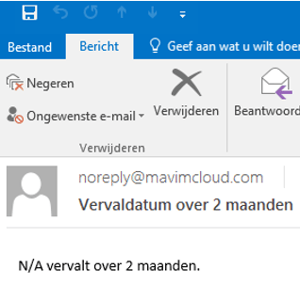
The Flow can be executed in this situation. Furthermore, when %TriggerTopic% is used, a separate email will be received for each topic if multiple topics are triggered.
TriggerSummary
%TriggerSummary% is intended to provide an overview of the topics that meet the trigger. When multiple topics are triggered by a Flow, the information about these topics is displayed in a single email.
Conclusion
When using markers in a Flow, the number of topics that can be triggered by the Flow must be taken into account.
Use %TriggerTopic% when the Flow results in one specific topic. When multiple topics can be triggered simultaneously, %TriggerSummary% is the right choice.
Webhooks + Power Automate
For full control, a webhook can also be used in combination with Power Automate.

Note: This is quite advanced technology, so ensure you have someone in your organization who understands the technology AND has access to these applications (likely IT). Additionally, the Webhooks feature is not available by default. It is an extra module that you can purchase for the Mavim Portal. If you would like more information about this feature, please contact your Mavim Account Manager.