
Target audience
Microsoft Entra administrators, cloud engineers, and technical consultants responsible for installing and managing enterprise applications in customer tenants.
1. Background
- Microsoft temporarily paused new Enterprise Application Gallery submissions.

- Apps cannot be onboarded through the Marketplace UI during this period.
-
Reference: Microsoft Learn – Enterprise Application Gallery Listing
- The Mavim Cloud applications are therefore installed using Azure CLI and Microsoft Graph.
- This method is Microsoft supported, requires explicit admin consent, and mirrors the end state of a Gallery‑based installation.
2. Prerequisites
Required Entra roles
- Global Administrator
- Application Administrator
- Cloud Application Administrator
Required tools
- Cloud Shell
- PowerShell
3. Mavim enterprise applications to install
|
Name |
Client ID |
Purpose |
|
Mavim Cloud – Identity Core Access |
51fb1b02-5c75-445f-9225-807e50623cd4 |
Core identity integration between Mavim Cloud and the customer tenant. Required for all Mavim Cloud services. It is required for authentication and authorization across all Mavim Cloud services and must be installed for any Mavim application to function. |
|
Mavim Cloud – Identity Web Application Access |
22720fe1-6437-4a23-819c-55cd6e69c7f3 |
Provides authentication for Mavim Cloud web applications. It is required to allow users to securely sign in to Mavim-developed web applications. |
|
Mavim Cloud – Identity Power Platform Access |
2269e636-3dc1-46aa-aff6-0b4a40cc31ba |
Enables identity‑based authentication for Mavim Cloud and Microsoft Power Platform integrations. It is required when Mavim Cloud is accessed through Power Platform integrations. |
|
Mavim Cloud – Identity API Access |
d7e8c2c2-4dee-4a43-b04a-a80ceab0417b |
Provides identity‑based access to Mavim Cloud APIs. It is required for applications or services that authenticate to Mavim Cloud APIs using Entra ID. |
4. Installation
-
Installation via the Cloud shell in Azure Portal (recommended)
Open https://portal.azure.com/ en click on the Cloud Shell button

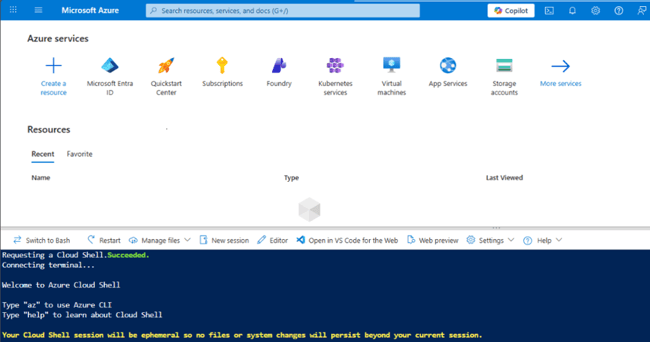
Note: it is important to select the correct Subscription
Login to the correct tenant (only if needed)
az login --tenant <TENANT_ID>
Choose the desired subscription (only if needed)
Set-AzContext -Subscription <ENTERYOURSUBSCRIPTIONID>
Check if you're in the correct subscription (only if needed)
Get-AzContext | Select-Object -ExpandProperty Subscription
Set the variable
Choose the ID of the desired app to be installed, start with Mavim Cloud - Identity Core Access:
Identity Core Access 51fb1b02-5c75-445f-9225-807e50623cd4
Identity Web Application Access 22720fe1-6437-4a23-819c-55cd6e69c7f3
Identity Power Platform Access 2269e636-3dc1-46aa-aff6-0b4a40cc31ba Identity API Access d7e8c2c2-4dee-4a43-b04a-a80ceab0417b
Set a variable for ClientId that holds the value of the ClientId of the Enterprise Application/ Service Principal, which can be reused further during subsequent steps.
$clientId = “<CLIENT_ID>”
NOTE: Update the placeholder <CLIENT_ID> with the client Id of the enterprise application to be installed, so when you start with Mavim Cloud – Identity Core Access use:
$clientId = “51fb1b02-5c75-445f-9225-807e50623cd4”
use the following command to install/ register the enterprise application / service principal into the tenant
az ad sp create --id $clientId
Apply required integration tag
To ensure correct classification as an integrated Enterprise Application, execute the following command to apply the “WindowsAzureActiveDirectoryIntegratedApp“ tag.
ConvertTo-Json @("WindowsAzureActiveDirectoryIntegratedApp") | Set-Content .temp-body-tags.json
This command creates a json file with content ["WindowsAzureActiveDirectoryIntegratedApp"] in the current location from where the script is being executed. This json file will be used to apply the tag further.
az ad sp update --id $clientId --set tags="@.temp-body-tags.json"
This will apply the tag WindowsAzureActiveDirectoryIntegratedApp to the service principal, which in turn will make the Service Principal / Enterprise Application to be visible under “Enterprise Applications” in the Azure Portal in the chosen tenant where the service principal was installed.
Now the first App has been installed, repeat those steps to install the other apps
-
Installation via the PowerShell
Open the Windows Terminal (preferably PowerShell prompt) and login to the Azure tenant by using the command:
az login --tenant <TENANT_ID>
Replace the place holder for tenant id with the Microsoft Entra ID’s tenant Id that you would like to have the service principal installed in. Press the “enter” key to see the pop-up prompting for multi factor authentication. Continue to authenticate and complete the process to login to the Azure tenant.
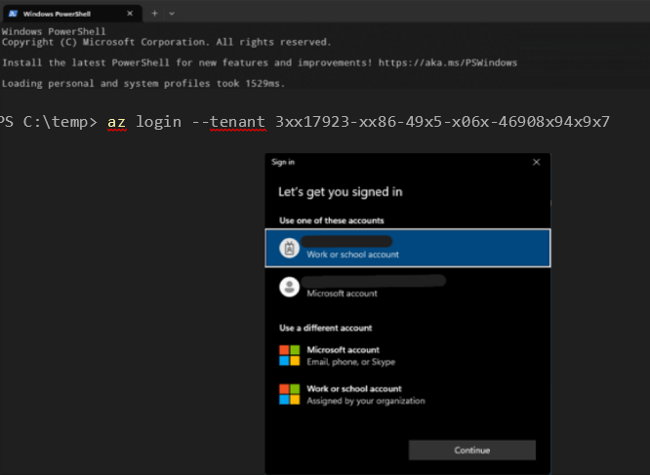
In the PowerShell terminal, execute the command as follows to set a variable for ClientId that holds the value of the ClientId of the Enterprise Application/ Service Principal, which can be reused further during subsequent steps.
$clientId = “<CLIENT_ID>”
NOTE: Update the placeholder <CLIENT_ID> with the client Id of the enterprise application to be installed (start with Identity Core Access) :
Identity Core Access 51fb1b02-5c75-445f-9225-807e50623cd4
Identity Web Application Access 22720fe1-6437-4a23-819c-55cd6e69c7f3
Identity Power Platform Access 2269e636-3dc1-46aa-aff6-0b4a40cc31ba Identity API Access d7e8c2c2-4dee-4a43-b04a-a80ceab0417b)
Once you have logged in to the Azure tenant, use the following instructions to install/ register the enterprise application / service principal into the tenant
az ad sp create --id $clientId
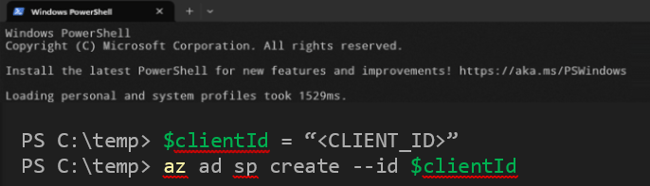
Apply required integration tag
To ensure correct classification as an integrated Enterprise Application, execute the following command to apply the “WindowsAzureActiveDirectoryIntegratedApp“ tag.
ConvertTo-Json @("WindowsAzureActiveDirectoryIntegratedApp") | Set-Content .temp-body-tags.json
This command creates a json file with content ["WindowsAzureActiveDirectoryIntegratedApp"] in the current location from where the script is being executed. This json file will be used to apply the tag further.
az ad sp update --id $clientId --set tags="@.temp-body-tags.json"
This will apply the tag WindowsAzureActiveDirectoryIntegratedApp to the service principal, which in turn will make the Service Principal / Enterprise Application to be visible under “Enterprise Applications” in the Azure Portal in the chosen tenant where the service principal was installed.

5. Grant admin consent (Azure Portal)
- Sign in to the Azure Portal.
- Go to Microsoft Entra ID, Enterprise applications, All applications.
- Search for the installed Mavim Cloud application.
- Open Security, then Permissions.
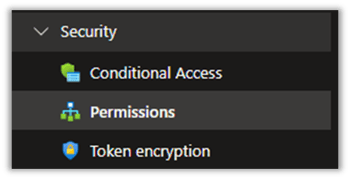
- Select Grant admin consent for <TENANT_NAME>.
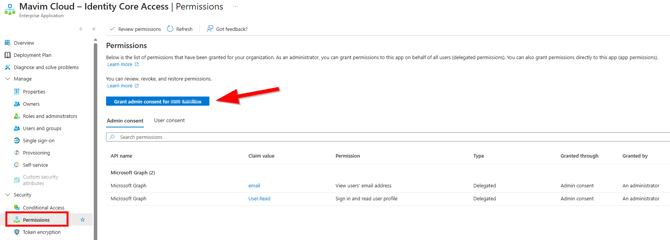
- Confirm the prompt.
6. Validation checklist
Verify the following:
- The application appears under Enterprise applications.
- Permissions are visible under Security → Permissions.
- Required delegated permissions show Admin consent granted.
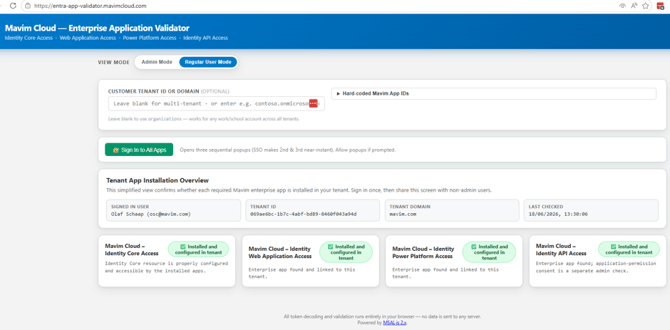
- The application validates successfully using the Mavim validation tool.
- Open: https://entra-app-validator.mavimcloud.com/
- Click Sign in to all Apps.
- Sign in with your account.
Each installed application should display: ‘Installed and configured in tenant’.
7. Security, compliance, and FAQ
- The CLI approach is Microsoft supported.
- No security controls are bypassed.
- No secrets or certificates are created.
- All actions appear in Entra audit logs.
- Apps will not need to be reinstalled when Microsoft reopens the gallery.
- Mavim Power Platform Connector v1.0 and v2.0 can run side by side.
- Do not remove the old enterprise application for v1.0 until Mavim instructs otherwise.
8. Understanding permissions
The installed applications function as service principals and run in the background to provide authentication and authorization services.
Administrators can limit access by assigning specific users or groups to each enterprise application.
The consent process grants only the delegated Microsoft Graph permissions required for Mavim functionality, such as:
- Reading the signed-in user's profile
- Reading basic directory information
No elevated administrative permissions are granted.
To review the permissions granted in your tenant:
- Open Microsoft Entra ID.
- Navigate to Enterprise applications.
- Select the relevant Mavim application.
- Open Permissions.
All granted permissions are listed there for review.
