Note:
Important: This feature is provided as Preview. While it may improve processing results in specific scenarios, it may not work perfectly for all Visio charts and should be used with caution.
This functionality has been introduced for customers who experience issues during the processing or publication of Visio charts. This component uses a different processing method and may help resolve certain conversion problems that occur when using the standard Visio integration.
When Should You Use This Feature?
To experiment if chart processing performs faster and equally good as using Visio and help us improve our product :
- Published charts appear incomplete or incorrect.
- Processing large numbers of Visio charts results in errors or performance issues.
- Mavim Support recommends testing this component as a workaround.
This functionality is marked as Preview as the output may differ from the current Visio processing results.
Enabling the new chart processing component
To enable the feature:
- Open Mavim Manager.
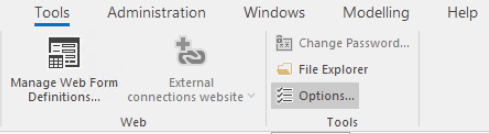
- Choose Tools - Options:
- Select the tab Miscellaneous.
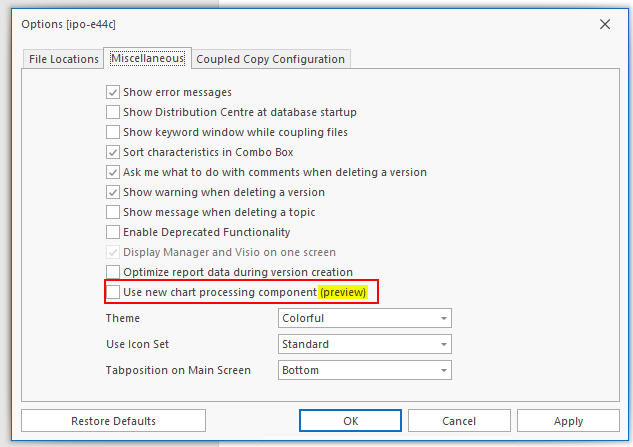
- Enable the option 'Use new chart Processing component (preview).
- Click Apply.
- Run the publication or chart processing again.
If the results improve, this option can be used as an alternative solution for your environment.
Known Limitations
This component is provided as an alternative processing method and may not support every Visio feature exactly as the standard Visio engine does.
Possible limitations include:
- Differences in chart rendering.
- Unsupported or partially supported Visio elements.
- Processing errors in complex charts.
- Unexpected output when using specific Visio features.
For this reason, the feature is offered on an Preview basis.
What to Do If the processing Fails
If the processing fails or is not equal to the current Visio processing results and you would like to have this investigated for improvement, Mavim Support would like to receive original Visio chart for further analysis.
Exporting a Chart from Microsoft Visio
- Open the affected chart in Microsoft Visio.
- Right-click on the drawing canvas.
- Select Export.
- Save the chart as a .vsdx file.
- Verify that the file has been saved successfully.
See also step 4 in this knowledgebase item: Export Visio chart
Sending the File to Mavim Support
After exporting the chart:
- Update your existing ticket.
- Attach the exported .vsdx file.
- Include the following information whenever possible:
- Any error messages displayed during conversion.
- Steps required to reproduce the issue.
-
include a description or screenshot where we can see the issue or problem in the Portal versus the original Visio drawing.
Providing the original .vsdx file helps our support and development teams investigate the problem more efficiently and identify possible improvements for future releases.