
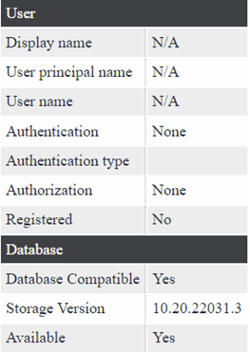
The issue is usually caused by one of the following:
- An expired token signing certificate in your ADFS configuration.
- Incorrect handling of external links when new versions are created.
- The referenced version or process is offline, deleted, or the user lacks group permissions.
Possible causes and solutions
1. Token signing certificate has expired
Mavim uses an ADFS integration for Single Sign-On (SSO). If the token signing certificate expires, the connection will fail.
Solution:
- Check the certificate validity in ADFS.
- Generate a new certificate if expired.
- Export the certificate in Base64 format.
- Send the Base64-encoded certificate to Mavim Support so they can update the configuration.
2. The link points to content that no longer exists
The external link may be outdated or the process was removed in a newer version.
Test:
Enter
Enter
https://xxx.mavimcloud.com directly in your browser.- If the Portal opens, the issue is with the specific link.
Solution:
- Create a new external link using the star icon in the Portal.
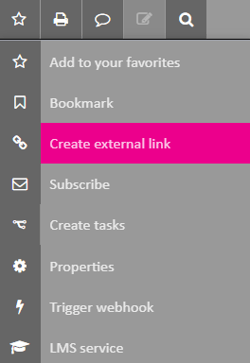
- Continue working on the same version lineage (e.g., 1001 → 1002 → 1003).
If you start a new series (e.g., 2001), you must create a new link. - Do not delete and recreate the process in Mavim Manager, as this changes its internal ID and breaks the link.
3. No access rights for the publication
The user opening the link may not have permission to view the content.
Solution:
- Ensure the version is Online.
- Verify the user belongs to the correct group in the Portal.
4. Incorrect cached credentials
Your browser may auto-fill old or incorrect login details.
Solution:
- Open the link in an InPrivate window (CTRL+SHIFT+N).
- Log in manually with the correct account.
5. Temporary internet or connection issue
If other websites also fail to load, the issue is local to your device or network.
Solution:
- Test other websites.
- If colleagues can access the Portal, the problem is with your computer.
- If colleagues on the same network also cannot access the Portal, check your organization’s network.
6. Issue on Microsoft’s side
If multiple Portals are affected at the same time, the problem may be with Microsoft services.
Next steps
- Test the Portal root URL (
https://xxx.mavimcloud.com).- If it does not open, check your network and certificate.
- If it opens, review link validity, access rights, and cached credentials.
- Contact Mavim Support if the issue persists.
