
The button Simulate becomes active after you have used the function Detect Paths.
To Simulate, follow these steps:
1. Click the Simulate button.
The following window appears: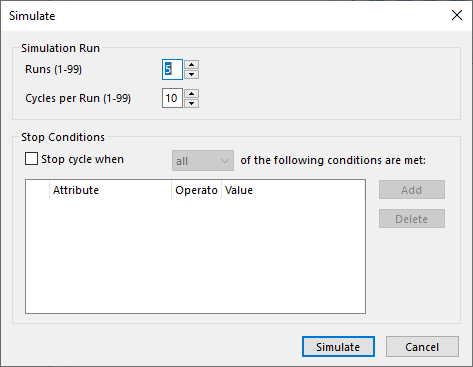
2. For Simulation Run, you can set the number of runs you want to perform, and how many cycles there are for each run. See Runs and Cycles for an explanation of these terms.
3. For Stop Conditions, you can enter conditions for attributes for when you want to terminate a process. For a further explanation of stop conditions, see Stop Conditions.
4. Click the button Simulate.
The Simulation tab appears: 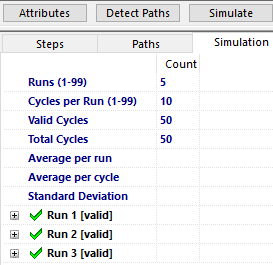
This tab contains the simulated runs. You will see for each run whether or not the run is valid, partially valid or invalid. For more information regarding validity, see Validity.
5. Now you have the possibility to replay the simulation. For more information,, see Play Simulation.
6. You can now save the chart. The topic for which you have created a chart will now also have a With What relationship with an Excel file. The content of this file is detailed at Internal Excel file.
7. It is also possible to export the entire simulation report. This process is explained under Export Simulation.
Note: If the simulation encounters a loop, the loop will be run through once, and end before the shape that starts the loop.
